
Understanding Internal Links and Their Importance
Internal links are hyperlinks that point to another page or resource within the same domain. In WordPress, these links enhance navigation, allowing users to explore your content more easily. From an SEO standpoint, WordPress internal links help search engines understand the structure and hierarchy of your content, improving your chances of ranking higher.
For website owners and digital marketers in Australia, leveraging internal links is crucial for driving traffic and boosting page authority. Properly placed internal links can increase user engagement and reduce bounce rates. If you’re wondering how to add an internal link in WordPress, you’ve come to the right place. This guide aims to provide clear, actionable steps to help you harness the power of internal linking.
If you’re keen on maximising your internal strategy, read our guide on Effective Intern Linkbuilding Strategies for SEO in Australia.
How to Add an Internal Link in WordPress
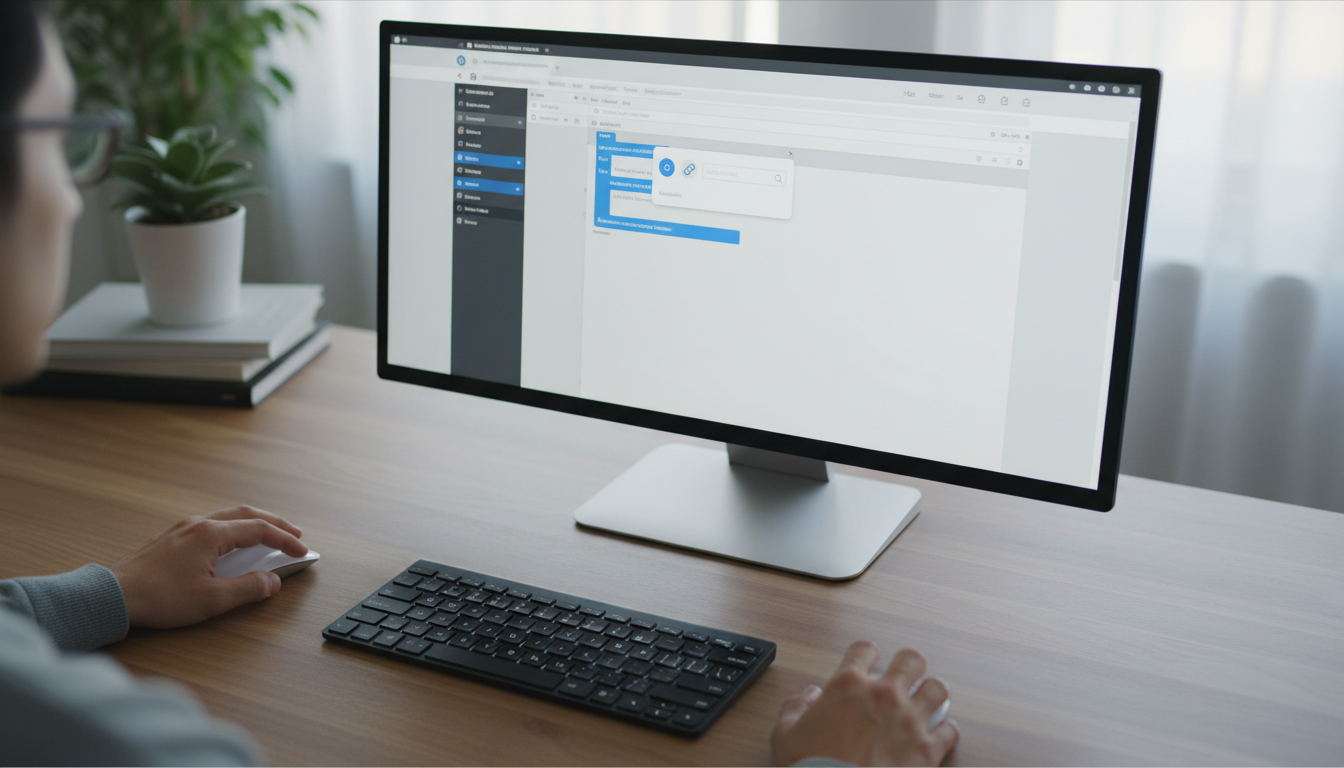
Adding an internal link in WordPress is straightforward. Follow these simple steps:
- Log into your WordPress dashboard.
- Navigate to the post or page where you want to add the internal link.
- Highlight the text that you wish to turn into a link.
- Click on the link icon in the toolbar.
- In the URL field, type or paste the URL of the page you’re linking to.
- Press “Enter” or click the “Apply” button.
It’s that easy! By incorporating relevant internal links, you not only enhance user experience but also contribute to your site’s SEO strategy.
To understand the balance between internal and external linking, see Internal vs External Links: The 2025 Guide for Australia.
Best Practices for Internal Linking
To maximise the benefits of your internal links, consider these best practices:
- Link Contextually: Ensure that the anchor text correlates with the content of the page you are linking to.
- Avoid Overlinking: Too many links can confuse users; maintain a balance.
- Use Descriptive Anchors: Instead of generic phrases like “click here”, use descriptive phrases that provide context.
- Focus on High-Quality Content: Only link to your best pages to guide users toward valuable information.
- Check Links Regularly: Periodically audit your internal links to remove any that lead to broken pages.
WordPress Internal Link Strategies for SEO
Understanding WordPress SEO internal links can significantly impact your website’s visibility on search engines. Here’s how to effectively implement an internal linking strategy:
Cluster Content Around Key Topics
Organise your content into clusters by related topics. For example, if your primary topic is “Digital Marketing,” create supporting content on SEO, social media strategies, and email marketing. Link each related post back to the main topic page.
This method not only helps users find related content but also improves your site’s topical authority in search engines. By doing so, you develop a robust internal network, positioning your content as comprehensive and well-structured.
Utilise Siloing Techniques
Siloing involves grouping related content to simplify navigation and enhance SEO. For instance, if you operate a travel blog, you might create silos for destinations, travel tips, and accommodation reviews. This structure keeps users engaged and promotes comprehensive exploration of your content.
Applying siloing in your internal linking strategy can also encourage search engines to effectively crawl your site, improving the likelihood of higher rankings.
Addressing Common Objections and Risks
Some may hesitate to use internal linking for fear of diluting page rank or confusing users. However, internal links can enhance rather than detract from user experience and SEO rankings. The key is to focus on quality over quantity. By linking relevant content thoughtfully, you improve user journey and SEO performance.
Be wary of distractions: excessive or irrelevant linking can frustrate users and lead to high bounce rates. To mitigate this risk, implement a linking strategy that prioritises relevant content and contextual relevance.
Internal Linking Tools for WordPress
There are several tools that can help streamline your internal linking process:
- Yoast SEO: This plugin helps you optimise your internal linking by providing suggestions based on content relevance and keyword strategy.
- Rank Math: Another SEO plugin that offers comprehensive suggestions for internal linking based on your entire site’s architecture.
- Link Whisper: This tool helps identify opportunities for internal linking as you write, improving the efficiency of your content creation process.
| Tool | Features | Price |
|---|---|---|
| Yoast SEO | Internal linking suggestions, readability analysis | Free & Premium options |
| Rank Math | Built-in internal link suggestions, powerful analytics | Free & Premium options |
| Link Whisper | Automated link suggestions, comprehensive reporting | $77/year |
Checklist for Adding Internal Links in WordPress
Use this checklist to ensure you’re optimising your internal linking effectively:
- ✔️ Identify relevant articles for linking.
- ✔️ Ensure anchor text is descriptive and relevant.
- ✔️ Avoid linking too frequently on a single page.
- ✔️ Periodically review links for broken URLs.
- ✔️ Check that links are enhancing user experience.
Pro Tip for Optimising Internal Links
Regularly monitor your website’s analytics to see how users are interacting with your internal links. Look for which links have the highest click-through rates and adjust your strategy accordingly. This data-driven approach helps refine your internal linking strategy and can boost your SEO significantly.
FAQ
1. What is an internal link?
An internal link is a hyperlink that points to another page within the same website, aiding in navigation and SEO.
2. Why are internal links important for SEO?
They help search engines understand your site structure, distribute page authority, and guide users effectively.
3. How many internal links should I use in a single post?
Focus on quality over quantity; generally, 2-5 internal links per post are ideal, depending on the length and relevance.
4. Can internal links affect user experience?
Yes, well-placed internal links enhance the user experience by guiding them to related content without overwhelming them.
5. How do I check if my internal links are working?
Regular audits are necessary; tools like Screaming Frog can help identify broken internal links quickly.
“`